Discussion Mesh making with Blender

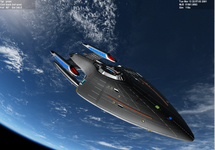
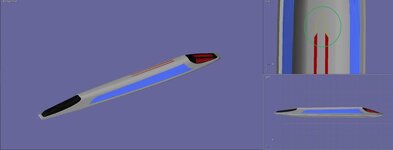
This is what I get for the Prometheus. Not sure why the material setting are not be copied into the mesh. But I just made some new materials.

But do not look too closely. the bottom has issues. If I auto smooth it makes it worse. Not sure if I can just select the window are to auto smooth rather than the whole piece?
 

Attachments

  • PROMETHEUSBTTM.jpg
    PROMETHEUSBTTM.jpg
    81.4 KB · Views: 3
  • PROMETHUS2.png
    PROMETHUS2.png
    942.7 KB · Views: 3
  • prometheus2.zip
    prometheus2.zip
    15.5 MB · Views: 3
If I auto smooth it makes it worse.
Select only individual mshgrps. You can adjust the smooth angle (see bottom right). If you need anything to have a hard angle you can mark edges as sharp. Blakes addon exports everything so it looks right in Orbiter.
Unbenannt-1.jpg
 
Thanks. but the problem is it looks good in blender but bad in orbiter
 
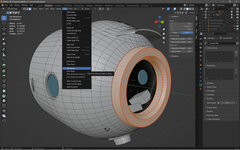
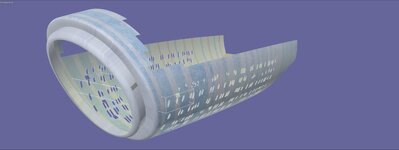
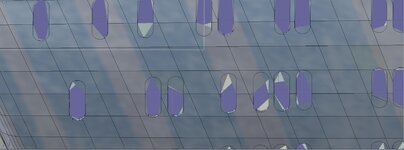
So I took this meshgroup and applied autosmooth to fix the windows. Looks good in blender but a mess in orbiter. Tried to just grab the windows but I could not
 

Attachments

  • autosmooth1.jpg
    autosmooth1.jpg
    58.4 KB · Views: 3
Last edited:
Looks good in blender but a mess in orbiter.
That looks like the old mesh vertex limit thing again!. As it's an import it might need a lot of editing. That mshgrp needs to be split up.
Select the window vertices in edit mode and seperate into a new mshgrp.
 
Thanks.
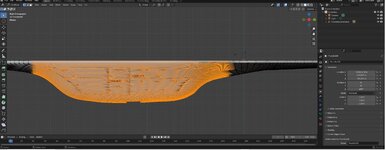
So I think I have the areas I want to fix. Not sure what to do next?
 

Attachments

  • BLENDERCUT.jpg
    BLENDERCUT.jpg
    62.8 KB · Views: 2
That looks like the old mesh vertex limit thing again!. As it's an import it might need a lot of editing. That mshgrp needs to be split up.
Select the window vertices in edit mode and seperate into a new mshgrp.
Do you think you could possibly help out gattispilot with some of the blend files?
 
@Luke Reichelt did you try the Prometheus mesh?

So I divide it into 3 sections and that seem to work. BUt trying to figure out the uv editor. I still don't know why the materials are not being transfered into the mesh
 

Attachments

  • ambassoribiter.jpg
    ambassoribiter.jpg
    59.7 KB · Views: 4
  • blendambass3.jpg
    blendambass3.jpg
    65.3 KB · Views: 4
  • blendambass2.jpg
    blendambass2.jpg
    64.6 KB · Views: 3
  • blendambass1.jpg
    blendambass1.jpg
    66.6 KB · Views: 3
Do you think you could possibly help out gattispilot with some of the blend files?
I can try to give practical advice if possible, still learning Blender myself.
These projects can be a lot of work as you've seen in the past. Still hope to take on more projects in the future when I have the capacity.:)
did you try the Prometheus mesh?
The Prometheus has a lot of normals that need flipping, not sure what's causing the pinching.
I still don't know why the materials are not being transfered into the mesh
Are you using the Orbiter Materials Panel. This and smoothing is covered in the Orbiter Tools Tutorial, very quick and easy.
Also recommend any YT video on basic UV editing in Blender, should find it similar to other 3D programs.🤞
 
Thanks. where is this?
Are you using the Orbiter Materials Panel. This and smoothing is covered in the Orbiter Tools Tutorial, very quick and easy.
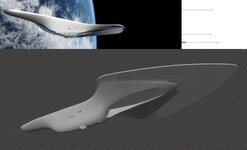
I think this prometheus mesh is good except for the bottom.

On the Ambassador I cut the bottom into 3 parts and it is good except for texturing. I might split it along the top into 2 parts. Maybe it will make it easier
 

Attachments

  • prometheusmesh.jpg
    prometheusmesh.jpg
    29 KB · Views: 2
Thanks. where is this?
The tutorial is in the "Resources" folder in the release package.
I think this prometheus mesh is good except for the bottom.
The mesh posted above has flipped normals all over the place, and 2 of the warp gondals are inverted (this comes from mirroring). Make sure all normals are pointing the right way. Also recommend "applying all transforms" before exporting.
Try splitting the bottom parts up, looks like a smoothing issue, or just bad mesh?
 
Thanks. I am not sure if I am guy that should be doing this.

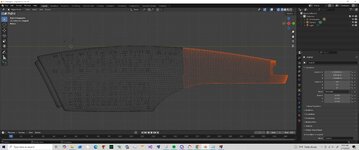
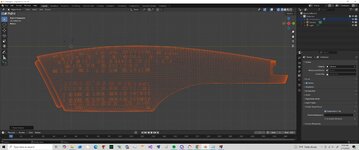
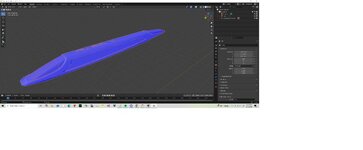
I exported the bottom part with windows as a obj.
It looks like one needs to cut the window part into the hull.
 

Attachments

  • promethusbtm1.jpg
    promethusbtm1.jpg
    30.7 KB · Views: 5
  • promethusbtm2.jpg
    promethusbtm2.jpg
    46.6 KB · Views: 5
Thanks. where is this?

I think this prometheus mesh is good except for the bottom.

On the Ambassador I cut the bottom into 3 parts and it is good except for texturing. I might split it along the top into 2 parts. Maybe it will make it easier
The Prometheus is looking really good so far, aside from the issues you mentioned.

By the way, do you think you could ask Buck Rogers for some advice regarding the issues with Olympic and Steamrunner?
 
confused. On the Promethus. Other than the bottom to me it looks good. But @Buck Rogers
The mesh posted above has flipped normals all over the place, and 2 of the warp gondals are inverted (this comes from mirroring). Make sure all normals are pointing the right way. Also recommend "applying all transforms" before exporting.
Not sure about the applying all transforms part?

So how I have been doing this. is export to a mesh and load in VB in Orbiter. See a inverted mesh group and then go into blender and invert,....

On the bottom. There are extruded faces and the the windows are cut into that.

I loaded the bottom into anim8or and you see all the faces are blue. which is reverse. but in blender they are orange.
 

Attachments

  • promethusfaceblender.jpg
    promethusfaceblender.jpg
    63.6 KB · Views: 1
  • prometheusfacedirection.jpg
    prometheusfacedirection.jpg
    24.2 KB · Views: 1
Other than the bottom to me it looks good. But
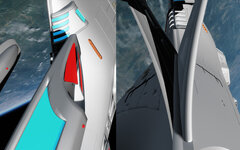
This is what I get in Orbiter:
Unbenannt-1.jpg
On the left the gondal nose-cone is see-through, on the right the left lower wing is the same (same on the other side)- inverted normals.
Not sure about the applying all transforms part?
In the Layout screen-Object-Apply
Just to make sure all transforms are set before export, size etc.
I loaded the bottom into anim8or and you see all the faces are blue. which is reverse. but in blender they are orange.
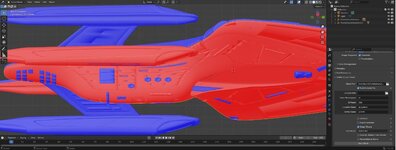
Shouldn't everything be blue in Blender for facing outwards? Select everything red and apply Mesh-Normals-Flip.
Also in the menu with "face orientation" you can select normal needle display for each face.

The pinching smoothing problem might be from multiple overlapping vertices, you could try carefully selecting some and merging by distance.
 
Thanks. So from what I read:
  1. Interpret Colors:
    • Blue faces indicate correct (outward) orientation.
    • Red faces indicate flipped (inward) orientation
      This color-coding provides immediate feedback, making it easy to identify faces that need correction.
I wonder if this mesh group has 2 mesh groups?
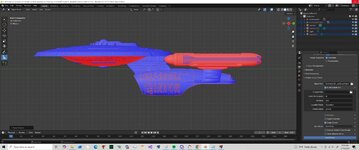
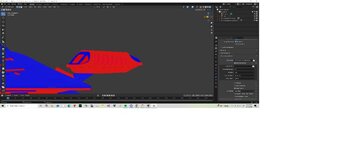
weird. so isolated those mesh groups in a new window. And get this. Notice mainly blue. but it looks like red is getting thru.
 

Attachments

  • blenderorienatation.jpg
    blenderorienatation.jpg
    31.4 KB · Views: 0
  • faceorintation1.jpg
    faceorintation1.jpg
    35.5 KB · Views: 0
I exported the nodule and fixed the mesh.

2 questions
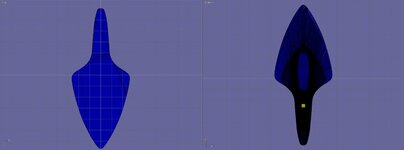
1 I think the mesh is not centered. Is there a way to do that. That way I can just mirror the nodules.
2. @Luke Reichelt the top of the nodule has the Star Fleet insignia. The model has just a outline of the yellow part. should it be filled in or just an outline?
 

Attachments

  • promcut1.jpg
    promcut1.jpg
    23.1 KB · Views: 2
Back
Top