High resolution Orbiter icon

Rtyh-12

Member
Joined
Sep 12, 2010
Messages
918
Reaction score
0
Points
16
Location
Kraken Mare
Well, I made a high resolution icon replacement for the stock one. As with many of my "improvements" (as if I made a lot of them) it keeps the style of the original. This time it comes in 2 versions, with and without the black background. It also comes in resolution up to a huge 512x512 (but also 16x16).

Here's a preview:
icontransparent.png


These two icons can be downloaded from here.

I also made icons for .scn files and for .cfg files, based on these ones. Unfortunately they ended up looking quite bad :( If you want, you can still download them from here.

Made in GIMP. The screenshot which was used as the base was taken in... well, I'll let you guess ;)

And many, many, many, more than DGs I destroyed, many thanks to orb. Thanks!

Enjoy!
 
Last edited:
I used RocketDock because, as I said, the low resolution versions of the transparent icons (which are the only ones WinXP natively supports) look awful.
They look awful, because they are 24-bit color + 1-bit alpha (R8G8B8A1), instead of 24-bit color + 8-bit alpha. Windows XP supports 32-bit icons too (R8G8B8A8), but only doesn't support PNG compression for larger icons (256x256 or 512x512).
 
Well, thanks a lot! :)

But... what should I do? :idk: Anyway, why does it look bad when I save it as 32-bit colors, 8-bit alpha? In that case the exhaust looks fine, but the ship looks awful.

I'm a complete n00b at this, so I may be missing something obvious (which I likely am).
 
But... what should I do?
What scaler do you use to make small icons?

You can rescale high resolution to low, and duplicate that rescaled layer and nex merge those layers, if edges are too fuzzy, or rescale them step by step, i.e. 512x512 to 128x128 (users of Win XP rather don't use larger icons), then 512x512 to 96x96, and next 128x128 to 64x64 and 96x96 to 48x48, 64x64 to 32x32, you can make or skip 24x24 from 48x48 and 16x16 you make from 32x32. You can then duplicate layers for icon sizes that have too fuzzy edges and then merge those layers. I usually duplicate a layer 2-8 times and check how icon looks like by disabling duplicates layer by layer. Then I merge those layers. It's usually 2 or 3 merged layers for 48x48 icon, for 32x32 it can be 2-5 duplicated layers, and 3-8 layers for 16x16 icon. You can also choose a different scaler, which can give you better results after rescale of images with transparency.
 
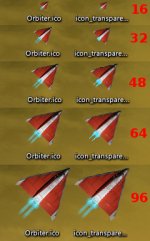
I don't know what problems you had when you were using 32bpp low resolution icons in Windows XP, and how bad DG looked. I've just rescaled your 512x512 icon to 128x128 and 96x96 and then these images to smaller, and only duplicated layers for 32x32 and 16x16 images, and that's the result on Windows XP - left: my version, right: yours:
I don't see the DeltaGlider looking bad at all.

I attached the modified icon in View attachment Orbiter_icon_transparent.zip archive (Orbiter.ico), so you can update your transparent icon in yours. I'll check the icons for .scn and .cfg later, to see how they look, and if they can be fixed similarly.
 

Attachments

  • ico_compare.jpg
    ico_compare.jpg
    56.8 KB · Views: 133
How did you do that o.o

Anyway, I scaled down the 512x512 icon to all other sizes, because multiple scaling doesn't tend to look good, but small images usually work differently. What program did you use?

The problem I had... well, see the 96x96 version in your image? The DeltaGlider has squares. The smaller icons looked the same, but it was worse.

Oh - and, thanks a lot!
 
How did you do that o.o

Anyway, I scaled down the 512x512 icon to all other sizes, because multiple scaling doesn't tend to look good, but small images usually work differently. What program did you use?

The problem I had... well, see the 96x96 version in your image? The DeltaGlider has squares. The smaller icons looked the same, but it was worse.

Oh - and, thanks a lot!
GIMP, Lanchos scaling, duplicated 512x512 layer twice, rescaled one duplicate to 128x128, another to 96x96.

Next, duplicated 128x128 layer and rescaled it to 64x64, duplicated 96x96 layer and rescaled it to 48x48. Then, I don't exactly remember whether I used only 64x64 layer or also 128x128, but if I used both then I rescaled them to 32x32 and merged with top layer 50% visible. The 16x16 icon I've simply made from 32x32 layer rescaled, then duplicated once and next merged those layers.

Your icon didn't have 96x96 icon so it was using rescaled by Windows 128x128 version. Mine has 96x96 icon, but hasn't got 256x256.

If you made 512x512, you didn't have create 256x256 icon from it, as those images will be used only by Windows Vista and newer, which have a better image scaler for icons than XP.
 
Back
Top